FocusDrop Lite
Free 7-Day Trial for Windows
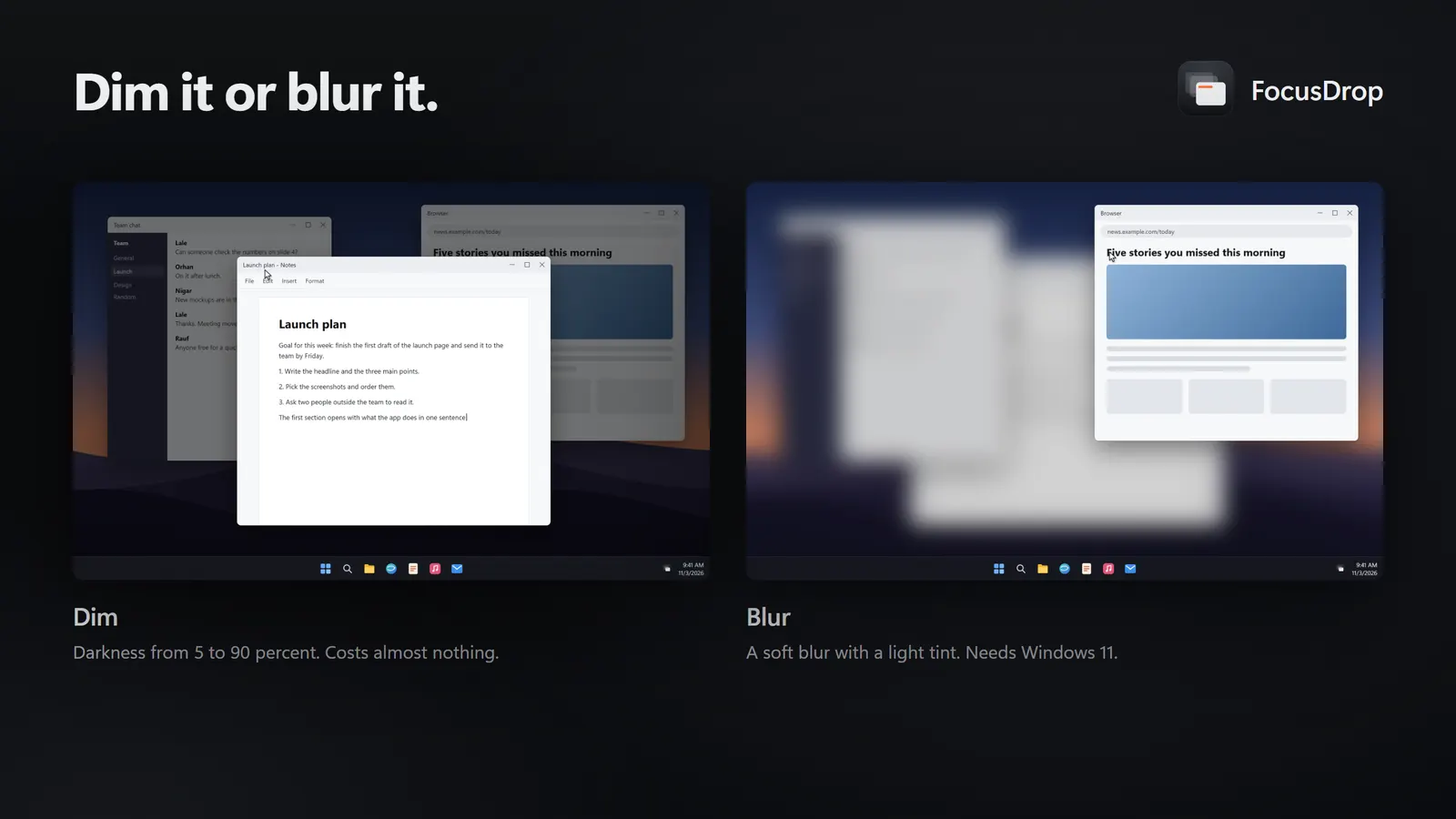
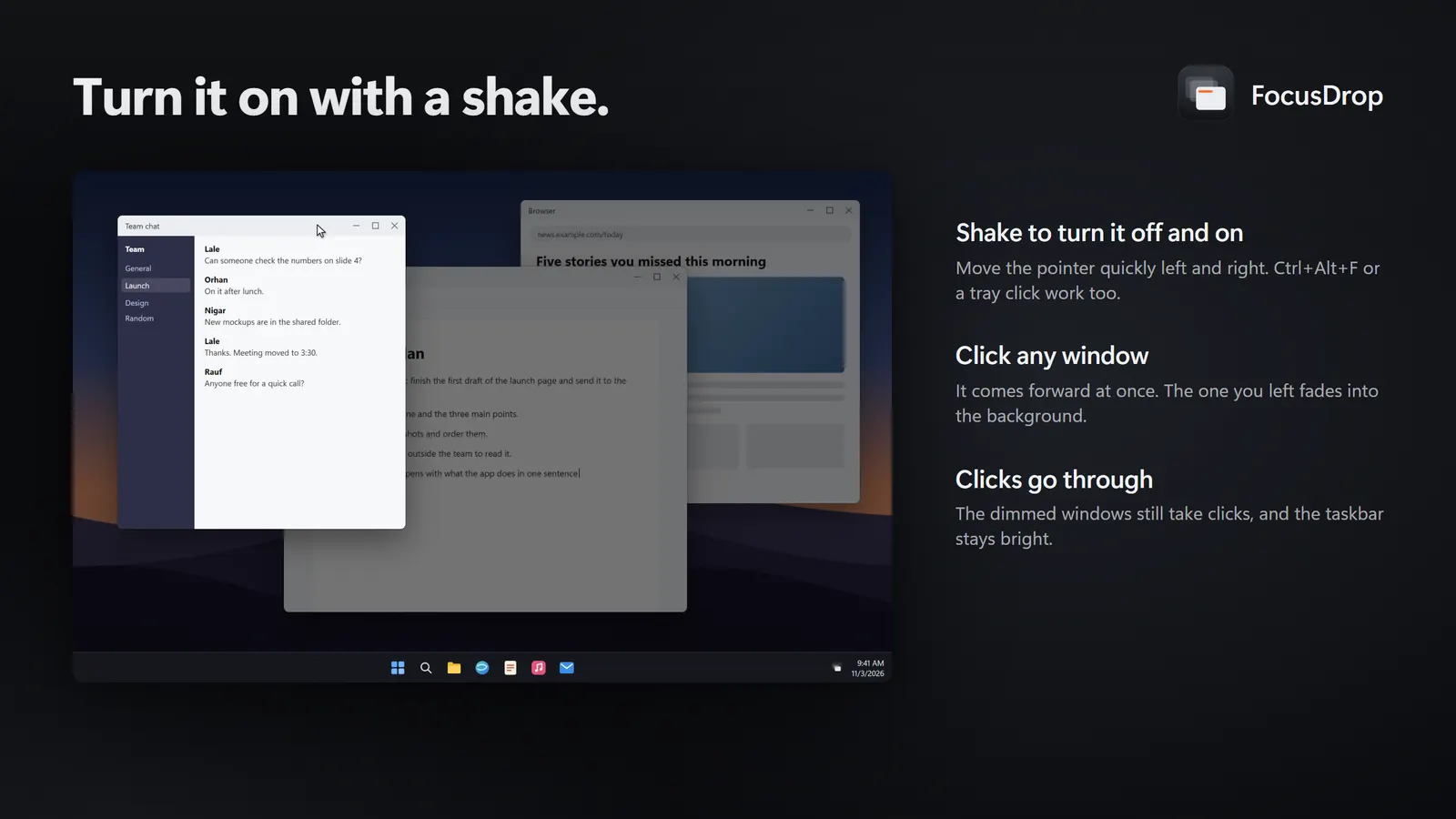
FocusDrop dims or blurs everything on your screen except the window you are working in. Chat apps, other tabs and the desktop fade back, and the one thing you are doing stays in front. Click another window and it comes forward at once while the one you left fades into the background.
Windows 10 (1903 or later) and 11, 64-bit. Blur needs Windows 11.
Dim works on Windows 10 and 11, with the darkness from 5 to 90 percent, changed live while you move the slider. Blur needs Windows 11 with transparency effects on.
The window you are working in, its menus and dialogs and the taskbar stay bright. Clicks go through the shade, so any window you click becomes the bright one.
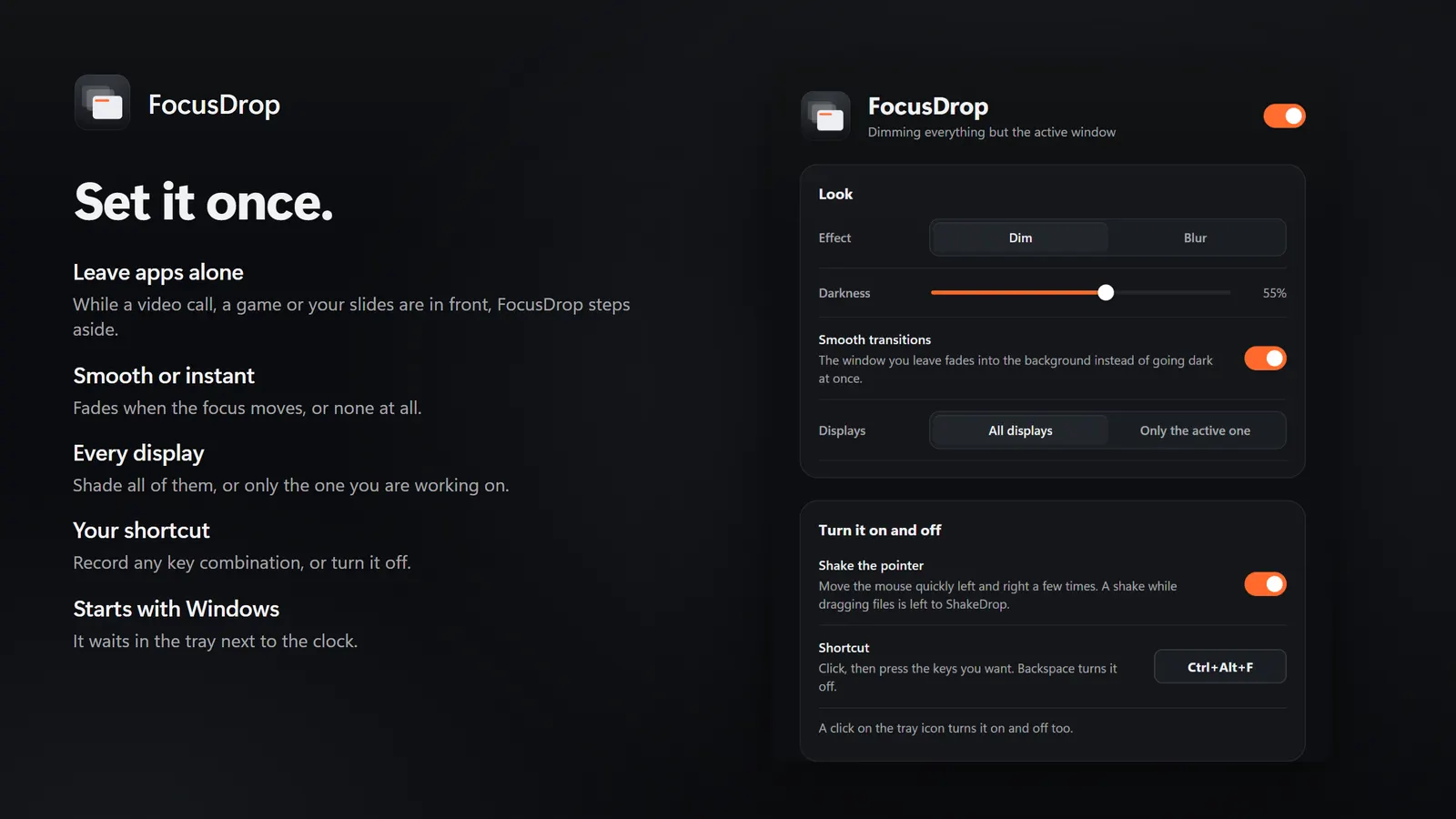
Shake the pointer quickly left and right, press Ctrl+Alt+F or click the tray icon. Record your own shortcut if you prefer. A shake while you drag files does nothing here, so it never gets in the way of ShakeDrop.
While a listed app is in front, such as a video call, a game or your slides, FocusDrop steps aside.
Shade all of them, or only the one you are working on.
The shade is drawn by Windows' own compositor and nothing redraws while your screen is still. No account, no internet connection, nothing leaves your PC.
Patch's Windows apps are not code-signed yet, so the first time you run the installer Windows may say "Windows protected your PC". Click More info, then Run anyway.
Install FocusDrop. Everything but the active window is dimmed right away, and Settings opens the first time.
Work as usual. Click another window and it comes forward while the one you left fades back.
Shake the pointer, press Ctrl+Alt+F or click the tray icon to turn the shade off and on.
Dim uses almost no processor or graphics time: the shade is drawn once by Windows and stays still until something changes. Blur keeps the graphics chip busier, so choose Dim on battery.
Add those apps to Leave these apps alone in Settings. While one of them is in front, FocusDrop steps aside. A shake or Ctrl+Alt+F also turns it off in a second.
Yes. Clicks go through the shade. Click any window and it becomes the bright one.
Yes. It shades every display, or only the one with the active window if you prefer.
No. You pay once and keep it. Use it on all of your own computers, and every 1.x update is free.
FocusDrop comes from an independent developer and is not code-signed yet, so the first time you run the installer Windows may say "Windows protected your PC". Click More info, then Run anyway.
Dim Everything but the Active Window on Windows
Need help after you buy? Reply to your receipt email and describe what happened. We will help you get it running.
Free 7-Day Trial for Windows
Drag and Drop Shelf for Windows
A Desktop Cat for Your Windows Taskbar