Clean up the desktop with what Windows already has
These steps take a few minutes and need no new software. For some people they are all it takes.
- 1
Hide every icon at once. Right-click an empty part of the desktop, open View and turn off Show desktop icons. Turn it back on the same way.
- 2
Line up what is left. In the same menu, turn on Align icons to grid, or Auto arrange icons if you want Windows to keep them packed together.
- 3
Sort by date. Right-click the desktop, open Sort by and choose Date modified, so old files gather in one place and are easy to select.
- 4
File it away. Right-click the desktop, choose New, then Folder. Select what you do not need every day and drag it into the folder.
- 5
Stop the flow. Check where your browser saves downloads and point it at your Downloads folder instead of the desktop.
The limits show up quickly. Hiding icons is all or nothing: your everyday shortcuts vanish along with the mess. Folders work, but only if you keep filing, and a busy desktop soon fills up again.
The one-drag way: sweep it under a rug
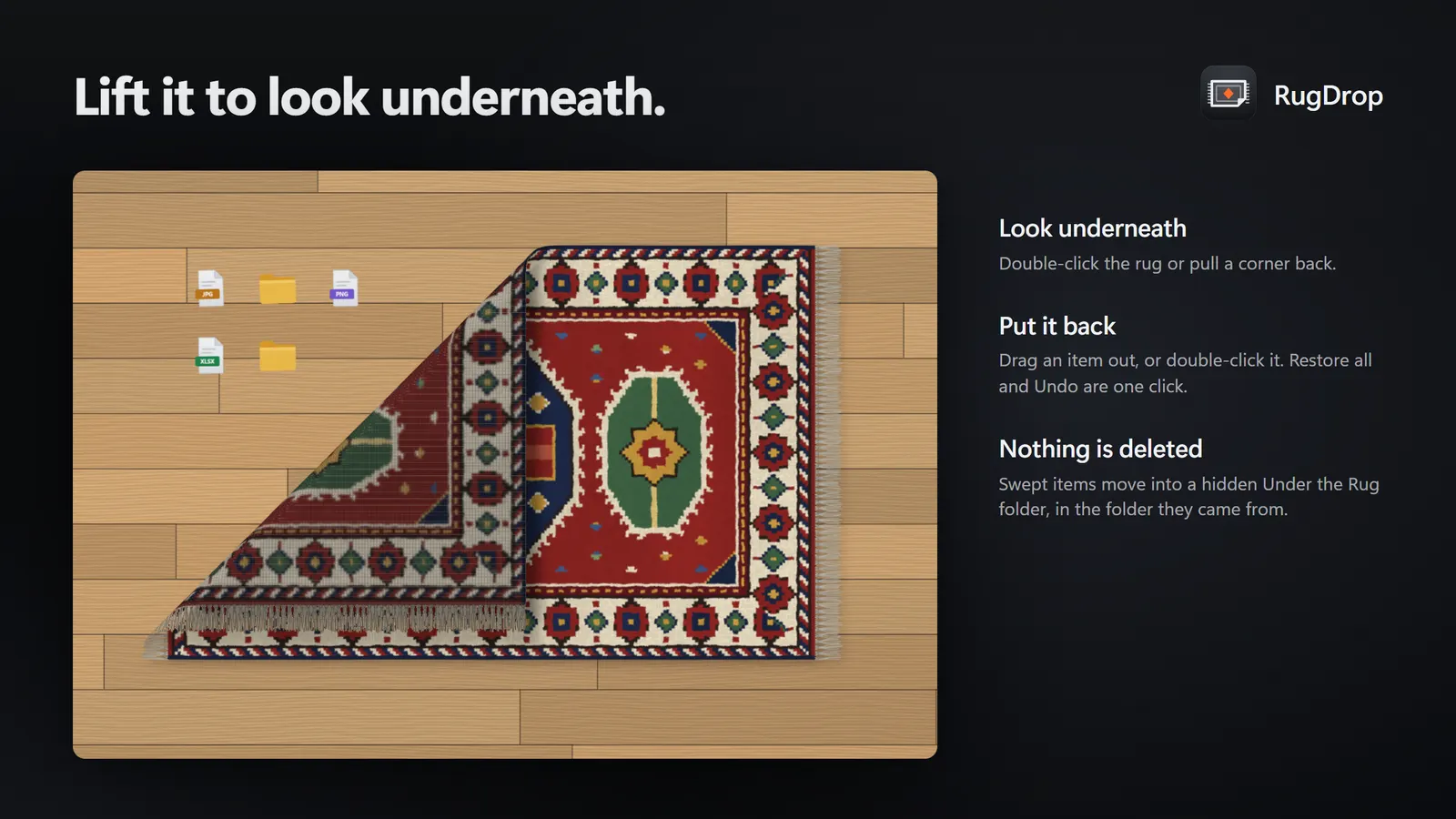
RugDrop lays a rug on your desktop, over the wallpaper and the icons and under every window. Drag files or folders onto it and the nearest corner lifts like cloth, their icons slide under, and the rug settles with a soft lump where they lie.
- 1
Install RugDrop. The rug appears on your desktop, under your windows.
- 2
Select the clutter and drag it onto the rug. It slides under the nearest corner.
- 3
Double-click the rug or pull a corner back to look under it.
- 4
Drag an item out, or double-click it, to put it back. Restore all and Undo are in the tray menu.
Nothing is deleted. Swept items move into a hidden folder called Under the Rug, inside the folder they came from, on the same drive. They are never copied, and a file that is open in another app stays where it is, with a short note that says why.
The rug stays on the desktop when you use Show desktop, and it only draws while something moves. There are eight rugs, five of them named after the carpet weaving schools of Azerbaijan, in three sizes, lying across or upright.
How RugDrop differs from Fences
The two apps deal with the same annoyance in opposite ways. Fences keeps your icons in view and organizes them. RugDrop takes them out of view and keeps them close. The table sticks to what each product says about itself, so check Stardock's site for the current details of Fences.
| Fences | RugDrop | |
|---|---|---|
| Approach | Sorts icons and files into shaded groups on the desktop | Hides files under one rug on the desktop |
| Your icons | Stay in view, in their groups | Out of view until you lift the rug |
| Sorting | Automation rules, or by hand | None: you drag away what you do not want to see |
| Systems | Windows 10, Windows 11 and ARM, as Stardock lists it | Windows 10 and 11. A Mac version exists, but it is new and has little real-world use |
Which one fits you
Pick a Fences-style tool if you want to see your icons all the time, sorted into groups, with rules that place new files for you. RugDrop does none of that, and it is not trying to.
Pick RugDrop if you want a bare desktop with your files one gesture away, for example before a screen share, and you would rather look at a rug than at a grid. It is a paid app, bought once, with no subscription.
And if turning off Show desktop icons already does the job, you do not need either one.